Working with Attributes
vertLab works mostly with float attributes. You can think of this as a greyscale vertex color, usually between [0:1].
vertLab is Geometry Based
The resolution of vertLab is directly influenced by mesh density/topology.
A float attribute is identical/interchangable with Blender's Vertex Groups. You can also paint them in Weight Paint mode.
Output Attributes
Output Attributes
Output Attributes is the most important section of vertLab modifiers. This tells the modifier which attributes to write to.
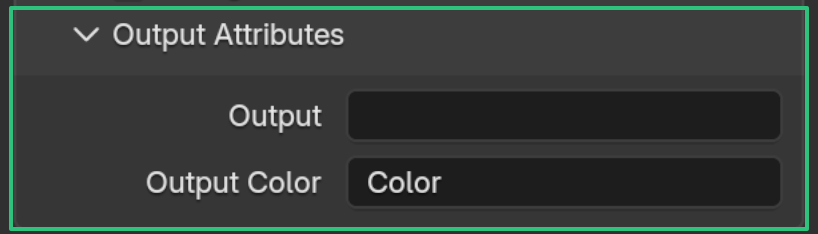
By default most modifiers will write to the Color attribute for easy visualisation in the viewport. This doesn't mean they've also written to an attribute.
Some modifiers have a default attribute they write to, but not all.
You can write to existing attributes or create new ones by typing a new name.
Viewing attributes in the viewport
By default vertLab modifiers overwrite the Color attribute so their effect can be easily seen in the viewport.* To show Color in the viewport:
-
1. Add Color Attribute
Add a Color attribute to your mesh if it hasn't got one.
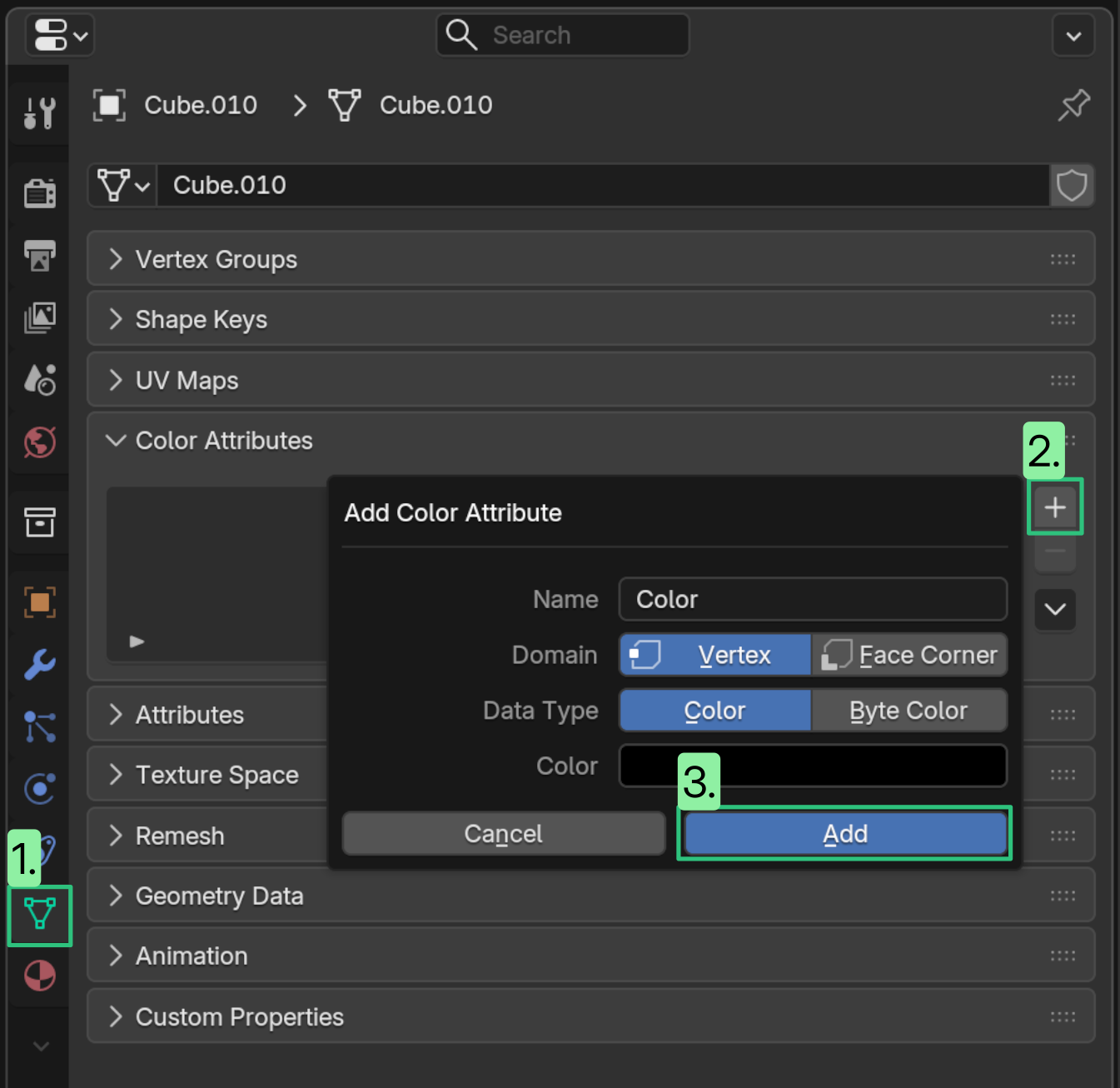
(This is because Blender looks for the "active color attribute" to know which one to visualize).
-
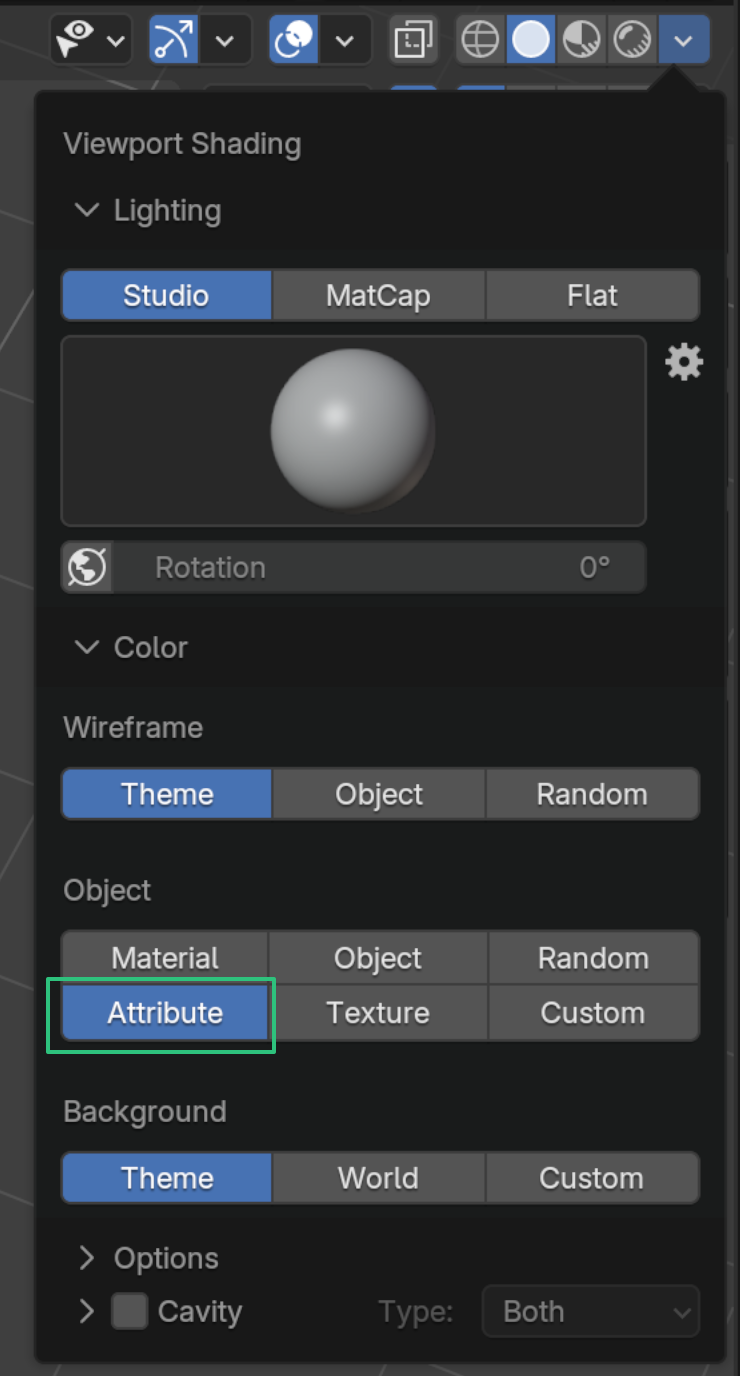
2. Change Viewport Shading
In the Viewport Shading menu set object color to "Attribute".
Keeping track of attributes
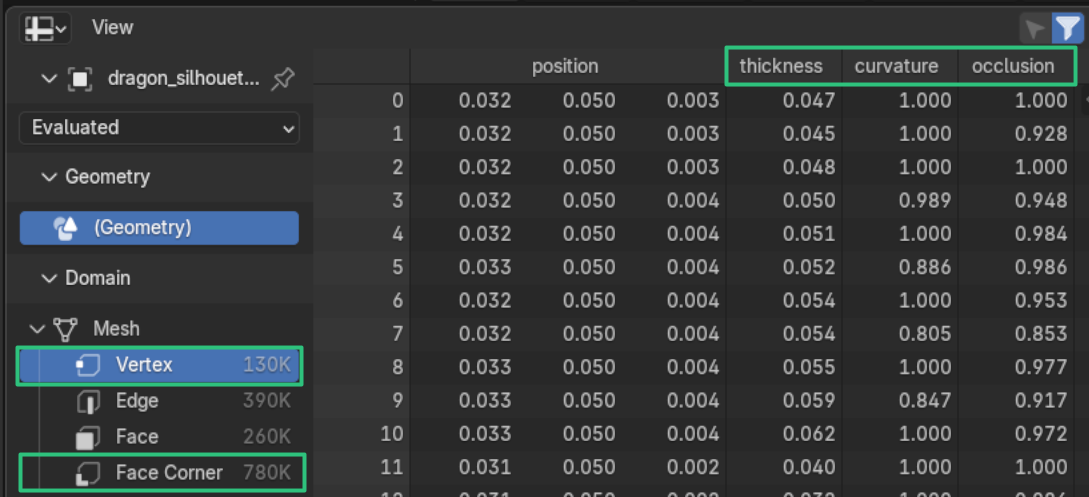
You can see all the attributes an object has by looking at the geometry spreadsheet Vertex and Face Corner tabs:
Points vs Face Corners
vertLab attributes are usually stored as point attributes but some allow for storing on face corners.
- Point: Lower memory, usually cheaper to calculate, can't have sharp edges.
- Face Corner: Higher memory, usually more expensive to calculate. allows for sharp edges.